

Briefly: AI meeting summary & email follow up
Briefly streamlines meeting notes, transcriptions, summaries, and follow-ups, boosting your productivity effortlessly.
About Briefly: AI meeting summary & email follow up
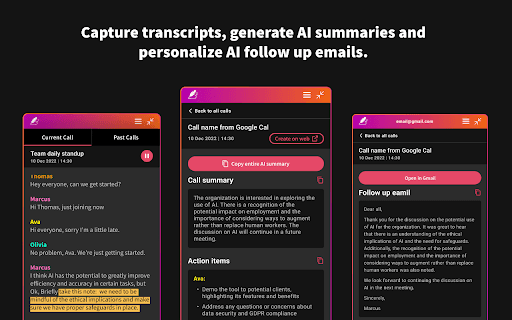
Briefly is a powerful browser extension that captures meeting notes, transcribes conversations, summarizes key points, and extracts insights without causing disruptions. It helps users stay engaged during meetings by automating note-taking and providing tools to organize information. Post-meeting, Briefly generates summaries, action items, and follow-up emails while transforming conversations into detailed project documents like product requirements, marketing briefs, and investment memos. Its seamless integration with platforms like Slack enables effortless updates to CRM systems with meeting insights.
How to Use
Install the Chrome Extension, sign in with your Google account, start a Google Meet session, and click 'Start transcribing this meeting' under Current Call. After the meeting, open the extension to view transcripts and AI-generated summaries. Use the follow-up tab to edit and send emails directly from Gmail. Access additional features through the dashboard via the 'Create on web' button or the provided URL.
Features
- Seamless integration with Slack and other platforms
- Real-time meeting transcription and organization
- Customizable action items and tasks
- Automated creation of follow-up emails
- Conversion of transcripts into project documents
- AI-powered summaries and key insights
Use Cases
- Updating CRM with meeting insights
- Sending follow-up emails efficiently
- Creating concise meeting summaries and action plans
- Generating detailed project documents from transcripts
Best For
Pros
- Speeds up follow-up email creation
- Provides AI-generated summaries and action items
- Facilitates quick project documentation
- Automates note-taking and transcription tasks
- Integrates smoothly with various platforms
- Operates unobtrusively without recording meetings
Cons
- Dependent on OpenAI's GPT technology, raising privacy considerations
- Transcript quality depends on meeting clarity
- Requires a Google account for sign-in
- Recap emails may sometimes land in spam folders