

Google Meet Transcripts
AI-powered meeting assistant for Google Meet featuring transcription, summarization, and more.
About Google Meet Transcripts
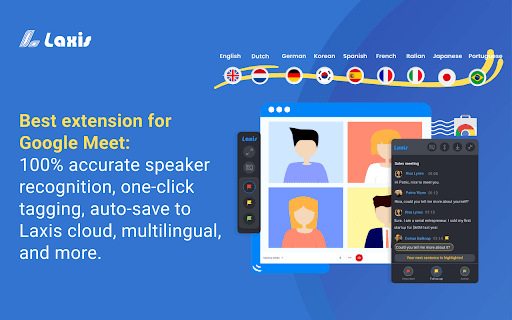
Laxis serves as an AI-driven assistant for Google Meet, enhancing your meetings with accurate transcripts and productivity features. It provides real-time transcription, speaker identification, quick tagging, and automatic cloud storage or downloadable files. After meetings, access smart summaries, insights, quote management, and powerful search functionalities to streamline your workflow.
How to Use
Install the Laxis Chrome extension, open Google Meet, and Laxis automatically launches with captioning enabled. Keep captions active for real-time transcription. Use highlight buttons to mark key moments. Click the download icon to select your preferred file format. Sign up for a free account to enable auto-save to the cloud and unlock advanced features.
Features
- Smart search for meeting data
- Real-time speech-to-text transcription
- One-click tagging of important sections
- Speaker recognition for accurate identification
- Management of insights and quotes
- AI-enhanced editing tools
- Concise meeting summaries
Use Cases
- Generate concise meeting summaries
- Quickly search meeting conversations
- Share detailed notes with team members
- Highlight critical moments during meetings
- Record and transcribe Google Meet sessions
Best For
Pros
- Automatic cloud saving prevents data loss
- Supports multiple file download formats
- Seamless integration with Google Meet
- Provides AI-powered summaries and insights
- High-accuracy real-time transcription
Cons
- Some advanced features have language limitations
- Optimal for English-language meetings
- Requires installing a Chrome extension