

구글렌즈를 이용한 파파고 이미지 번역
Effortlessly translate text from images using Google Lens combined with Papago or DeepL for accurate results.
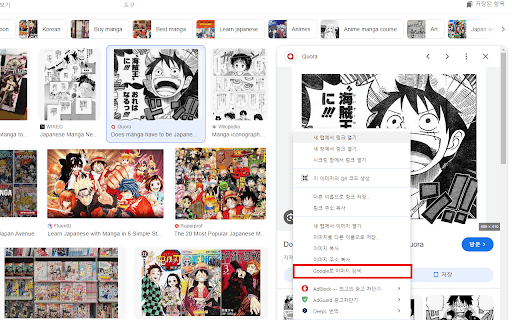
About 구글렌즈를 이용한 파파고 이미지 번역
This method involves using Google Lens to extract text from images, then translating it with Papago or DeepL. Google Lens leverages advanced image recognition to identify text within photos. Papago and DeepL provide high-quality translations across multiple languages. Combining these services allows users to quickly and accurately translate text embedded in images for various needs.
How to Use
1. Launch Google Lens and capture or upload an image. 2. Let Google Lens detect and extract the text. 3. Copy the extracted text. 4. Paste it into Papago or DeepL. 5. Choose the source and target languages. 6. Tap translate to see the converted text.
Features
- Accurate image text extraction
- Seamless translation between languages
- Supports multiple platforms
Use Cases
- Translating signs, menus, or documents in foreign languages
- Understanding text in images while traveling
- Assisting language learners with real-time translations
- Converting text from photos for research or study
Best For
TravelersLanguage studentsInternational business professionalsResearchersTourists
Pros
- Leverages advanced image recognition and translation technology
- Available on mobile devices and online platforms
- Supports a broad spectrum of languages
- Enables fast and convenient image text translation
Cons
- Dependent on internet connection
- Translation accuracy varies with image quality and text complexity
- May require manual editing of extracted text
FAQs
Is this image translation process free?
Yes, Google Lens, Papago, and DeepL offer free versions suitable for most users.
Which languages are supported for translation?
All three services support numerous languages. Visit their websites for the full list of supported languages.
How accurate are the translations?
Translation accuracy depends on image quality, text complexity, and language pair. Review the results for best accuracy.
Can I use this method offline?
Google Lens requires an internet connection for text recognition and translation. Some features may work offline if pre-downloaded.
Is manual correction necessary after translation?
In some cases, manual editing may improve accuracy, especially with complex or unclear images.